Setting Up Payment #
Access the M365 App #
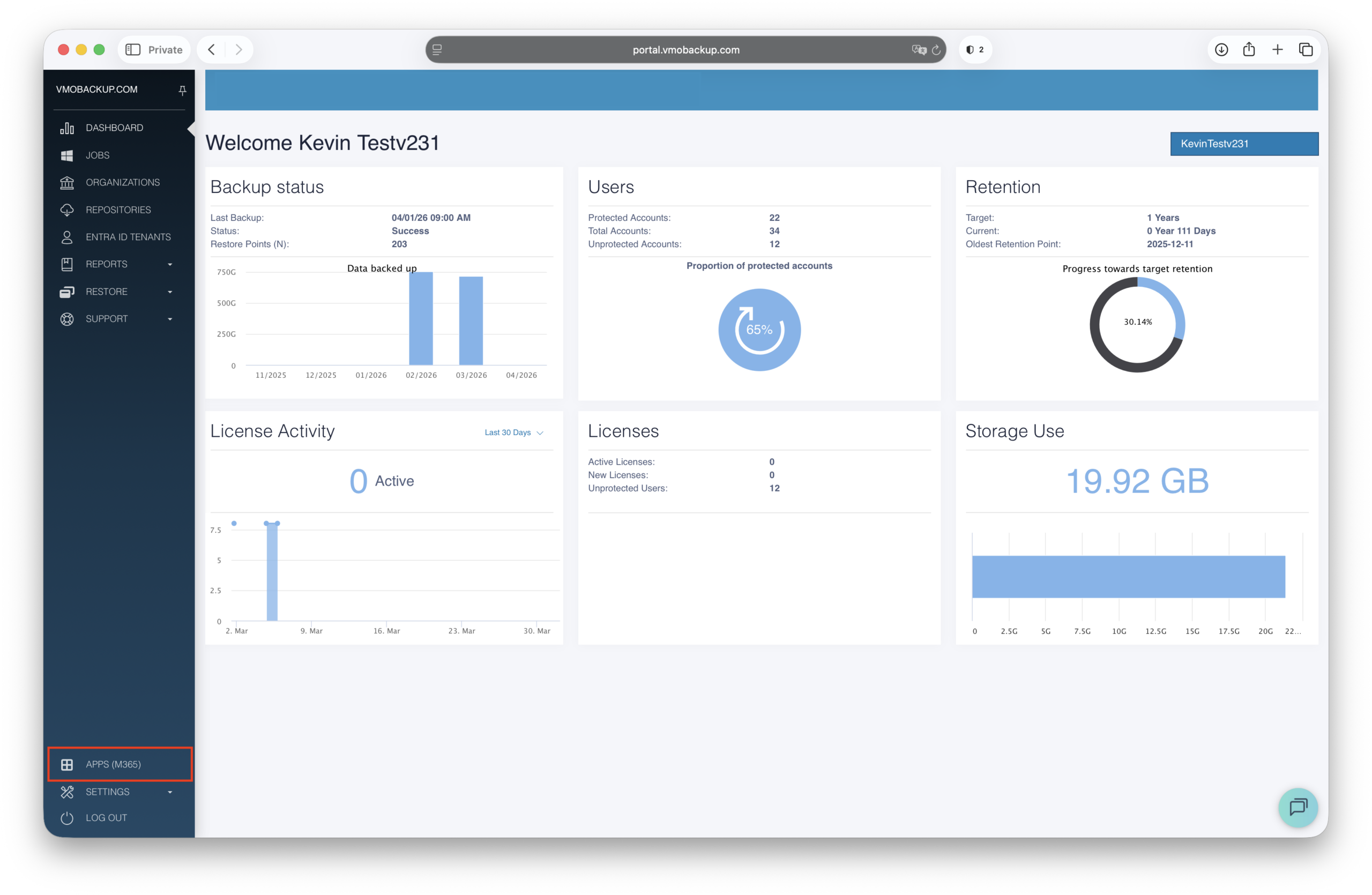
Log in to the VMOBACKUP portal and make sure you’re in the M365 App.
Go to Subscription Settings #
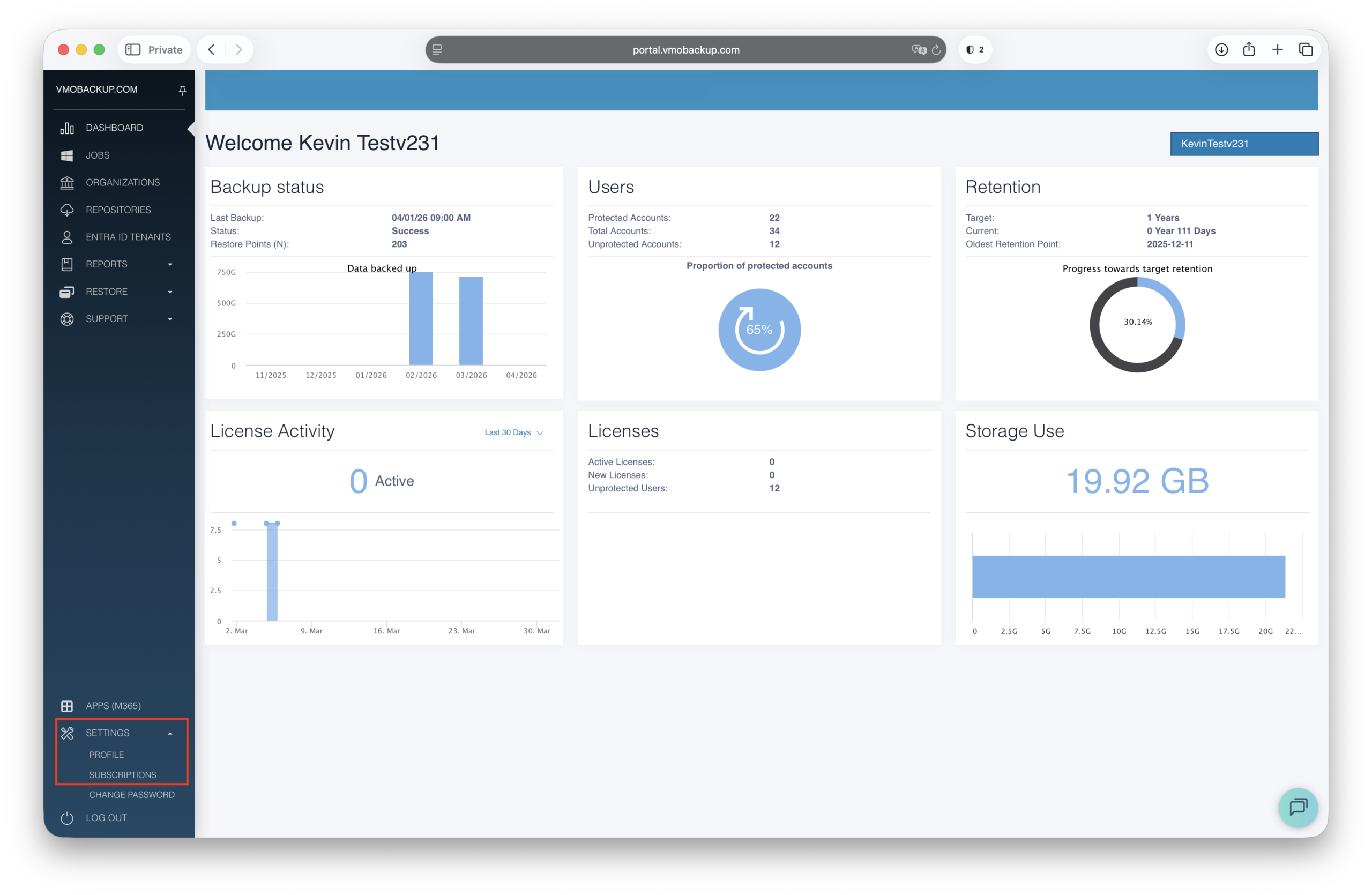
In the left-hand menu, click Settings (located under APPS).
Select Subscriptions.
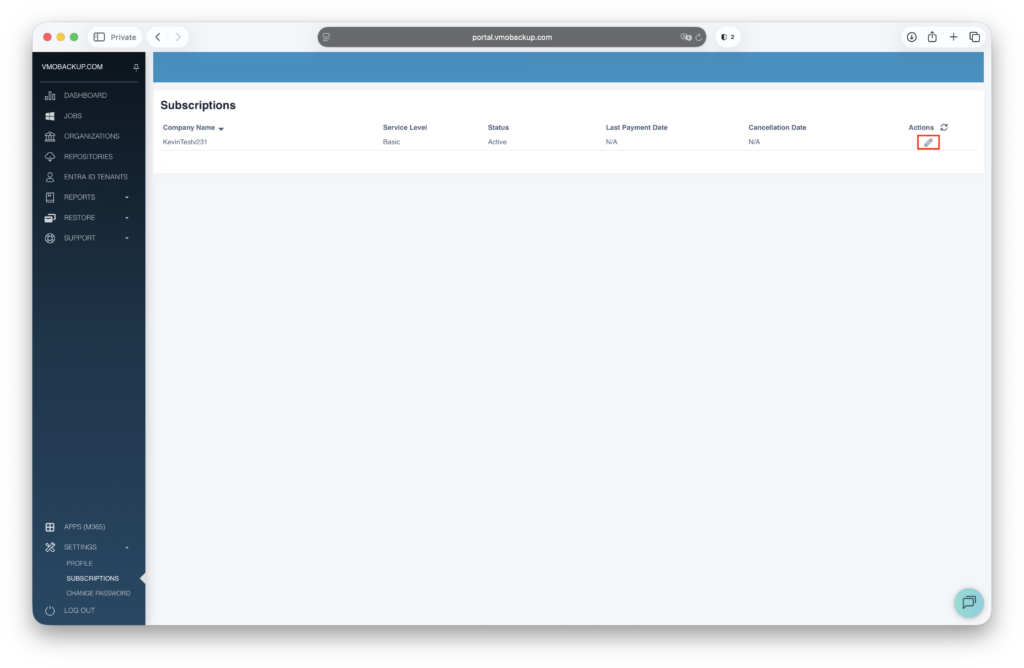
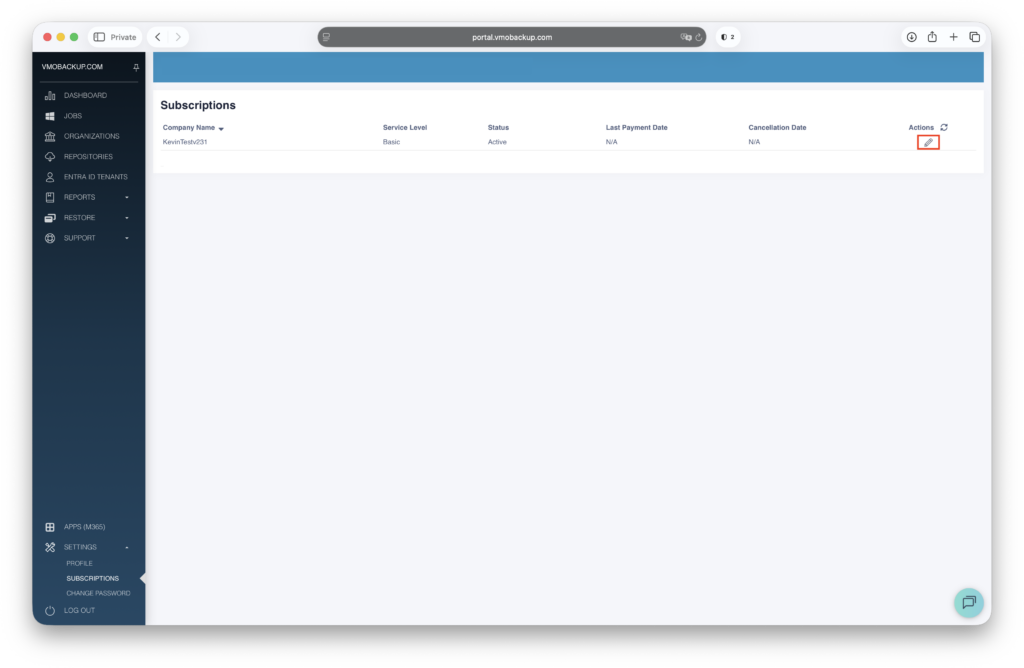
Click the pencil icon next to your current subscription to make changes.
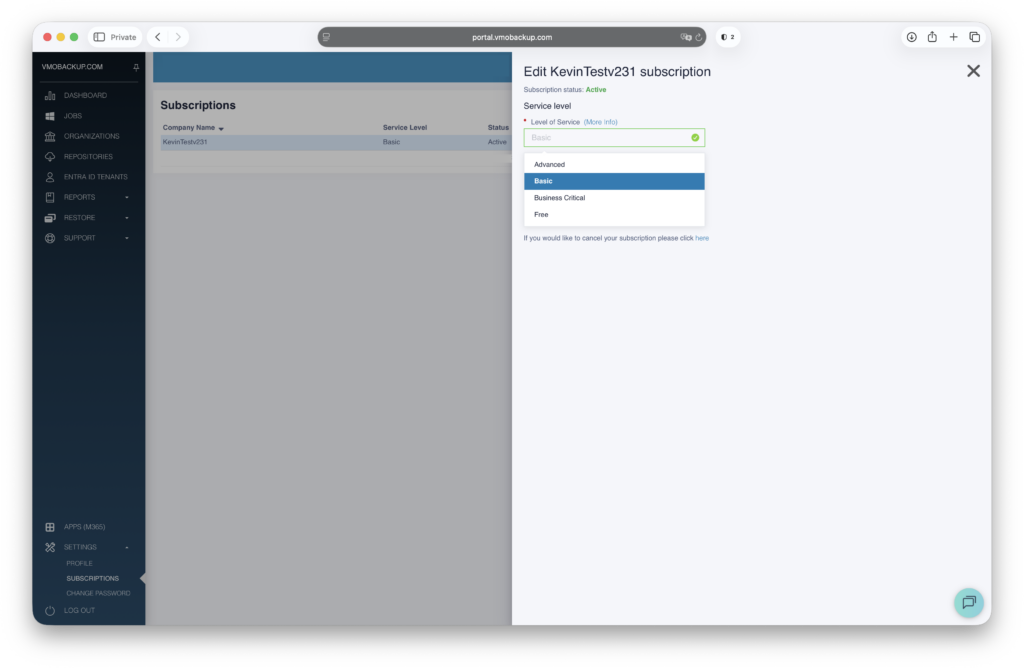
Choose Your Service Level #
Pick the subscription level that fits your needs.
Click Save.
Enter Payment Information #
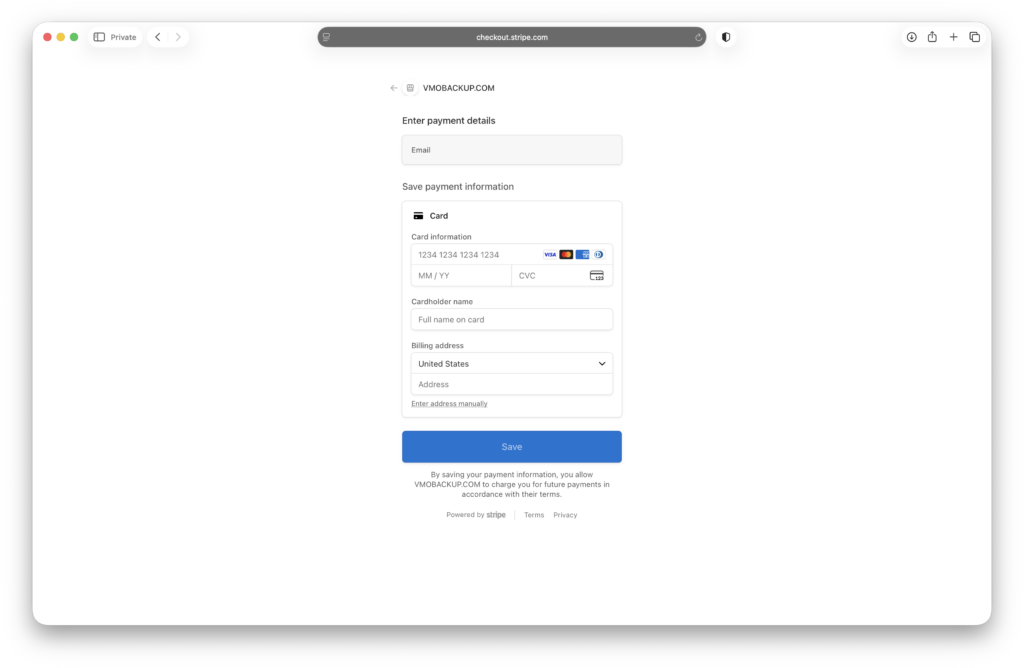
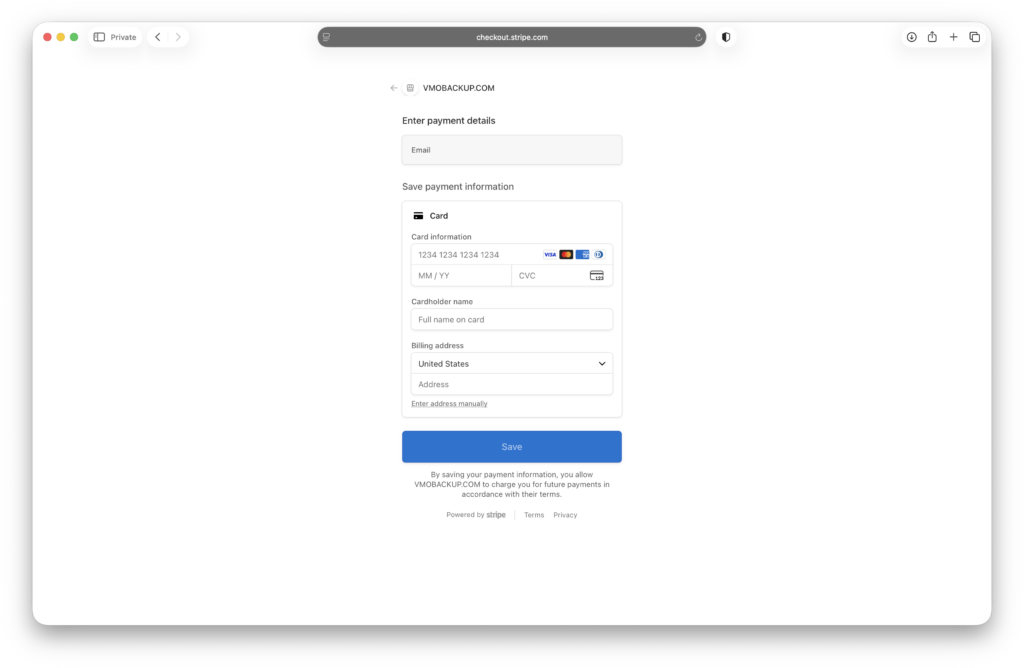
You’ll be redirected to Stripe, our secure payment processor, to enter your credit card details.
Note: All credit card data is securely handled by Stripe.
Confirmation #
After entering your payment info, you’ll return to the VMOBACKUP portal where your updated subscription will be visible.
Changing Your Payment Method #
Need to update your credit card?
Click the pencil icon next to your subscription.
Select Change Payment Method.
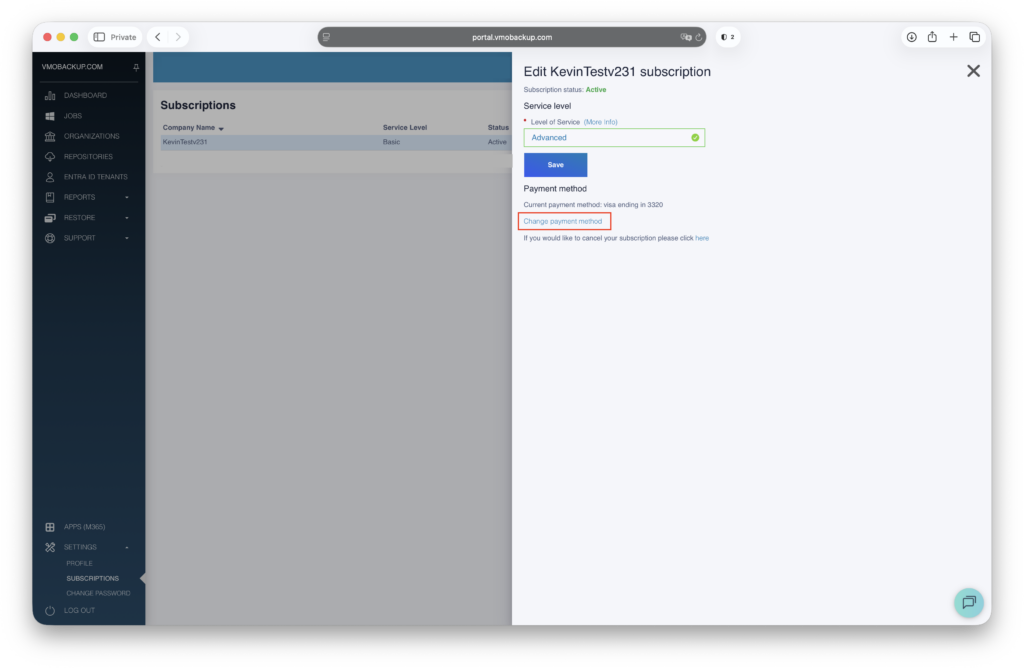
You’ll be redirected to Stripe again to securely update your card details.